

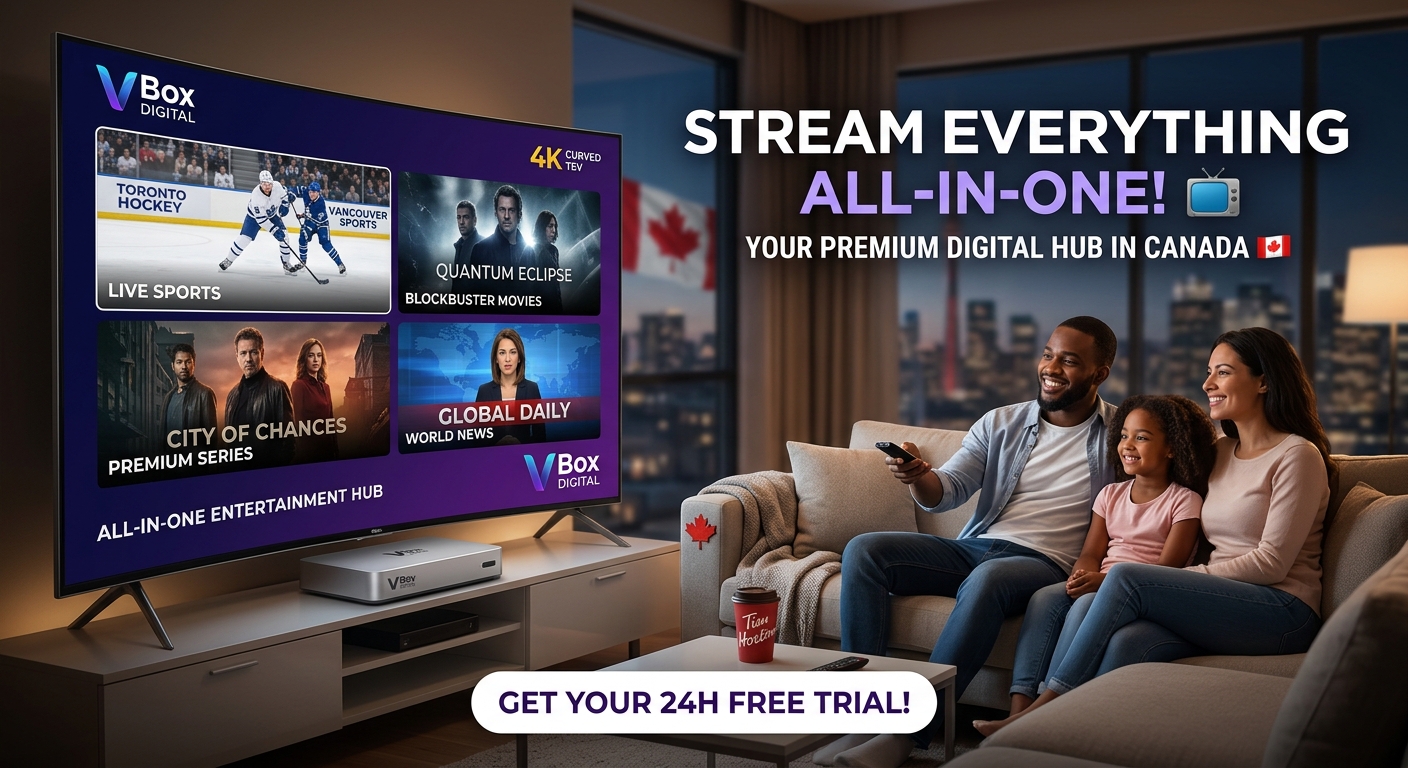
What is internet protocol television and how does it work on streaming hardware?
As traditional cable subscription prices continue to climb across Canadian provinces, millions of households are asking: what is internet protocol television, and how can you stream high-definition content seamlessly using an Amazon Fire TV stick? Simply put, this technology delivers live broadcast channels and video on demand over your existing home internet connection rather than relying on legacy satellite dishes or coaxial cable lines.
Legacy television delivery streams hundreds of channels simultaneously into your living room, consuming infrastructure resources and requiring physical tuner hardware. Modern digital streaming networks operate far more efficiently: when you launch a player application on your smart device, encrypted requests retrieve only the exact media stream you select from cloud servers. Official developer guidelines and system specifications can be reviewed on the official Amazon Fire OS developer documentation portal.
Why is Amazon Fire TV popular for Canadian cord-cutters?
Canadian viewers require reliable streaming performance optimized for major local broadband providers like Bell Fibe, Rogers Ignite, and Telus PureFibre. Amazon media streaming hardware has become a widely adopted choice across Canadian homes due to several key factors:
- Hardware Processing & 4K HDR: Modern Amazon 4K Max devices feature quad-core processors, Wi-Fi 6 / 6E support, and dedicated GPU rendering for smooth 60FPS sports playback.
- Cost Efficiency: Instead of paying recurring monthly equipment rentals for proprietary set-top boxes, a standalone streaming stick requires only a single hardware purchase.
- Open Sideloading Ecosystem: Unlike restricted smart TV operating systems, the Amazon media platform supports custom player installation via the Downloader app.
How do Amazon Fire TV models compare for 4K streaming in 2026?
To select the right hardware for your living room, the table below compares the technical specifications and streaming performance across current Amazon streaming devices:
| Fire TV Model | Processor & RAM | Internal Storage | Wi-Fi Standard | 4K HDR & Audio Support | Primary Recommendation |
|---|---|---|---|---|---|
| Fire TV Stick 4K Max | 2.0 GHz Quad-Core / 2GB RAM | 16 GB | Wi-Fi 6E (Dual-Band) | 4K UHD, Dolby Vision, HDR10+, Atmos | Best for main 4K TVs & live sports |
| Fire TV Stick 4K | 1.7 GHz Quad-Core / 2GB RAM | 8 GB | Wi-Fi 6 | 4K UHD, Dolby Vision, HDR10+ | Solid standard 4K home streaming |
| Fire TV Cube (3rd Gen) | 2.0 GHz Octa-Core / 2GB RAM | 16 GB | Wi-Fi 6E + Ethernet Port | 4K UHD, Super Resolution Upscaling | Power users & hands-free Alexa control |
| Fire TV Stick HD / Lite | 1.7 GHz Quad-Core / 1GB RAM | 8 GB | Wi-Fi 5 (802.11ac) | 1080p Full HD only | Secondary bedroom & travel screens |
How do I install digital TV apps on an Amazon Fire TV in 5 minutes?
Setting up your digital media subscription on an Amazon streaming adapter requires no technician service calls. Follow these steps:
- Enable Unknown Apps: On your device dashboard, navigate to Settings > My Fire TV > Developer Options (or My Fire TV > About > click device name 7 times to reveal Developer Options) and turn ON "Install Unknown Apps".
- Install Downloader Application: Open the official Amazon Appstore, search for "Downloader", and click install.
- Fetch Player Application: Open Downloader, grant storage permissions, and enter the download code or URL for your preferred player app (such as TiviMate, IPTV Smarters Pro, or XCIPTV).
- Input Login Credentials: Launch the installed player app, select Xtream Codes API or M3U playlist format, and enter the server address, username, and password provided by your subscription operator.
For a complete walkthrough of installing and configuring player apps on your device, consult our IPTV installation guide.
Frequently Asked Questions about Fire TV and streaming in Canada
Which Amazon Fire TV stick is best for 4K streaming?
We recommend the Fire TV Stick 4K Max. It features a 2.0 GHz quad-core processor, 2GB of RAM, 16GB of internal storage, and Wi-Fi 6E support for lag-free 4K Ultra HD playback.
Do I need a VPN on a streaming stick in Canada?
While not strictly mandatory, using a VPN on your streaming adapter helps prevent ISP bandwidth throttling from Canadian broadband providers (such as Bell or Rogers) during peak evening hours and major live sporting events.
Can I install TiviMate directly on Amazon streaming devices?
Yes. While TiviMate is not hosted in the Amazon Appstore, you can easily install it using the Downloader app by entering the official TiviMate APK download code.
How much internet speed is needed for 4K streaming on a media stick?
A stable download speed of at least 15 Mbps is recommended for standard 1080p HD, while 30 Mbps to 50 Mbps or higher is required for uncompressed 4K Ultra HD live sports streams.
Why does Downloader say 'Install Unknown Apps' is restricted on Fire OS?
Recent system updates hide Developer Options by default. To unlock them, go to Settings > My Fire TV > About, click your device name 7 times continuously until a pop-up says "You are now a developer," then return to My Fire TV to see Developer Options.
Disclosure: VBox Digital is an independent technology guide and digital service reseller. We are not affiliated with Amazon, Bell Canada, Rogers Communications, or Telus. All product names, logos, and trademarks belong to their respective owners. Last reviewed: November 6, 2026.
Explore Streaming Adapter Options
Review compatible streaming plans, device setup instructions, and pricing tiers available on VBox Digital.